Region类
使用Region 类定义区域。该类的构造函数如下所示:
code.vb.net
Public Sub New()
Public Sub New(GraphicsPath)
Public Sub New(Rectangle)
Public Sub New(RectangleF)
Public Sub New(RegionData)
其中,GraphicsPath参数为一个已经指定的路径,Rectangle和 RectangleF分别为整型和浮点型坐标下的矩形,RegionData为指定 Region对象的字节数组。可见,从已有的矩形和路径可以创建区域。
区域通过Graphics类的 FillRegion方法进行绘制。
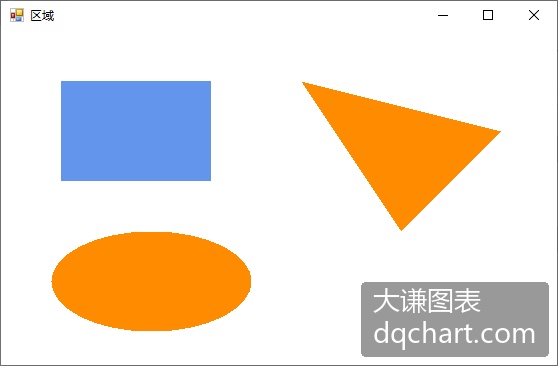
下面的例子讲解了区域的创建和绘制方法。首先创建一个矩形区域,然后创建一个三角形和一个椭圆组成的路径,并根据该路径创建另一个区域。最后绘制这两个区域。
【VB.NET]
code.vb.net
Protected Overrides Sub OnPaint(ByVal text-blue-400">e As PaintEventArgs)
     Dim g As Graphics =text-blue-400">e.Graphics
     g.FillRectangle(Brushes.White, Me.ClientRectangle)
     Dim rl As New Region(New RectangleF(60,50, 150,100))
     Dim gp As New GraphicsPath()
     gp.AddLine(300,50,500,100)
     gp.AddLine(500, 100,400,200)
     gp.CloseFigure()
     gp.StartFigure()
     gp.AddEllipse(50, 200,200,100)
     Dim r2 As New Region(gp)
     g.FillRegion(Brushes.ComnflowerBlue, r1)
     g.FillRegion(Brushes.DarkOrange,t2)
     r1.Dispose()
     r2.Dispose()
     gp.Dispose()
End Sub
【VC#.NET】
code.vc#.net
protected ovemide void OnPaint(PaintEventArgs e)
{
     Graphics g= e.Graphics;
     g.FillRectangle(Brushes.White, this.ClientRectangle);
     Region rl=new Region(new RectangleF(60,50,150,100);
     GraphicsPath gp=new GraphicsPath();
     gp.AddLine(300,50,500,100);
     gp.AddLine(500,100,400,200);
     gp.CloseFigure();
     gp.StartFigure();
     gp.AddEllipse(50, 200,200,100);
     Region r2=new Region(gp);
     g.FillRegion(Brushes.ComnflowerBlue, r1);
     g.FillRegion(Brushes.DarkOrange,r2);
     rl.Dispose();
     r2.Dispose();
     gp.Dispose();
}
程序运行结果如图3-7所示。
\[\]
图3-7 绘制区域
渐变色填充
在介绍文本时我们讲到了刷子,其中有两种刷子分别称为线性梯度刷子和路径梯度刷子。这两种刷子按照一定方向,用渐变的颜色填充区域。例如,下面定义一把线性梯度刷子,其线性渐变的起始点为(10,10),终止点为(100,10),起始点的颜色为红色,终止点的颜色为蓝色。
【VB.NET】
code.vb.net
Dim IGBrush As New LinearGradientBrush( _
     New Point(10,10), _
     New Point(100,10), _
     Color.FromArgb(255,0,0), _
     Color.FromArgb(0,0,255))
【VC#.NET】
code.vc#.net
LinearGradientBrush IGBrush=new LinearGradientBrush(
     new Point(10,10),
     new Point(100,10),
     Color.FromArgb(255,0,0),
     Color.FromArgb(0,0, 255));
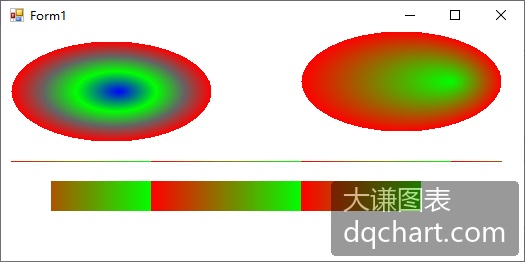
下面的例子使用线性梯度刷子和路径梯度刷子来填充椭圆、矩形和绘制直线段。
【VB.NET】
code.vb.net
Protected Overrides Sub OnPaint(ByVal text-blue-400">e As System.Windows.Formns.PaintEventArgs)
     Dim g As Graphics = text-blue-400">e.Graphics
     '定义一个线性梯度刷子
     Dim IGBrush As New LinearGradientBrush( _
          New Point(0,10), _
          New Point(150,10), _
          Color.FromArgb(255,0,0), _
          Color.FromArgb(0, 255,0))
     Dim pen As New Pen(IGBrush)
     '用线性梯度刷效果的笔绘制一条直线段,填充一个矩形
     g.DrawLine(pen,10,130,500,130)
     g.FillRectangle(IGBrush, 50, 150, 370,30)
     '定义路径并添加一个椭圆
     Dim gp As New GraphicsPath()
     gp.AddEllipse(10,10,200,100)
     '用该路径定义路径梯度刷子
     Dim brush As New PathGradientBrush(gp)
     '颜色数组
     Dim colors As Color(={ _
     Color.FromArgb(255,0,0), _
     Color.FromArgb(100, 100,100), _
     Color.FromArgb(0,255,0), _
     Color.FromArgb(0,0, 255)}
     '定义颜色渐变比率
     Dim r As Single0={ _
          0.0F, _
          0.3F. _
          0.6F, _
          1.0F}
     Dim blend As New ColorBlend()
     blend.Colors = colors
     blend. Positions =r
     brush.InterpolationColors = blend
     '在椭圆外填充一个矩形
     g.FillRectangle(brush, 0,0, 210,110)
     '用添加了椭圆的路径定义第2个路径梯度刷子
     Dim gp2 As New GraphicsPath()
     gp2.AddEllipse(300, 0,200,100)
     Dim brush2 As New PathGradientBrush(gp2)
     '设置中心点的位置和颜色
     brush2.CenterPoint = New PointF(450,50)
     brush2.CenterColor = Color.FromArgb(0, 255, 0)
     '设置边界颜色
     Dim colors2 As Color()=(Color.FromArgb(255,0,0)}
     brush2.SurroundColors = colors2
     '用第2个梯度刷填充椭圆
     g.FillEllipse(brush2,300,0, 200,100)
End Sub
【VC#.NET】
code.vc#.net
protected override void OnPaint(PaintEventArgs e)
{
     Graphics g=e.Graphics;
     //定义一个线性梯度刷子
     LinearGradientBrush IGBrush=new LinearGradientBrush(
          new Point(0, 10),
          new Point(150,10),
          Color.FromArgb(255,0,0),
          Color.FromArgb(0, 255,0);
     Pen pen=new Pen(IGBrush);
     //用线性梯度刷效果的笔绘制一条直线段,填充一个矩形
     g.DrawLine(pen, 10, 130,500, 130);
     g.FillRectangle(1GBrush, 50, 150, 370,30);
     //定义路径并添加一个椭圆
     GraphicsPath gp=new GraphicsPath();
     gp.AddEllipse(10, 10,200,100);
     //用该路径定义路径梯度刷子
     PathGradientBrush brush=new PathGradientBrush(gp);
     //颜色数组
     Color[ colors={
          Color.FromArgb(255,0,0),
          Color.FromArgb(100,100,100),
          Color.FromArgb(0, 255,0),
          Color.FromArgb(0,0,255)};
     //定义颜色渐变比率
     float[] r={
          0.OF,
          0.3F
          0.6F,
          1.0F};
     ColorBlend blend=new ColorBlend();
     blend.Colors = colors;
     blend.Positions = r;
     brush.InterpolationColors = blend;
     //在椭圆外填充一个矩形
     g.FillRectangle(brush, 0, 0,210,110);
     //用添加了椭圆的路径定义第2个路径梯度刷子
     GraphicsPath gp2=new GraphicsPath();
     gp2.AddEllipse(300, 0,200,100);
     PathGradientBrush brush2=new PathGradientBrush(gp2);
     //设置中心点的位置和颜色
     brush2.CenterPoint = new PointF(450,50);
     brush2.CenterColor =Color.FromArgb(0, 255,0);
     //设置边界颜色
     Colorl colors2=(Color.FromArgb(255,0,0)}
     brush2.SurroundColors = colors2;
     //用第2个梯度刷填充椭圆
     g.FillEllipse(brush2,300,0, 200,100);
程序运行结果如图3-8所示。
\[\]
图3-8渐变色填充效果"